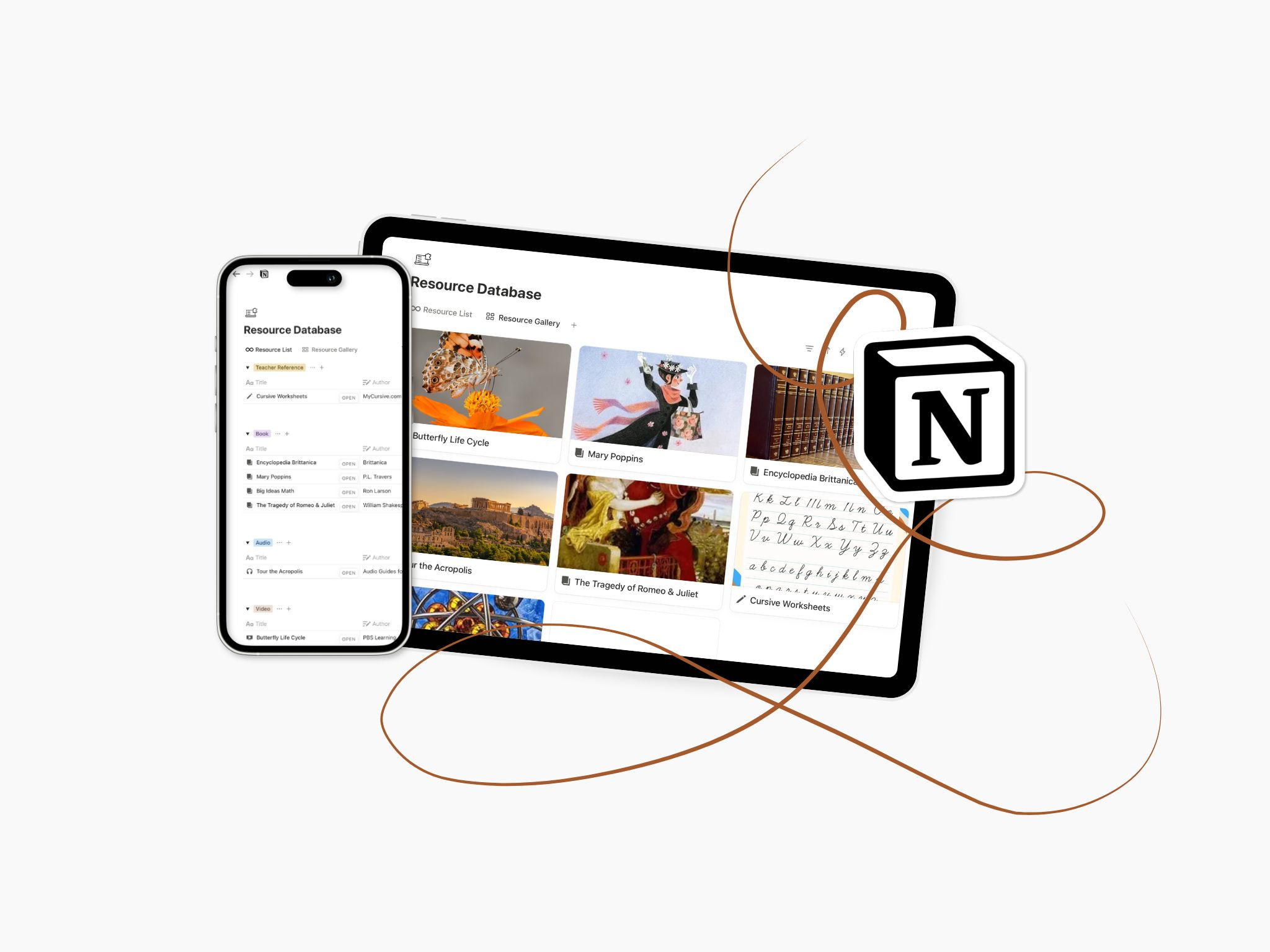
This is one of those pretty little pages that always makes me smile. It’s also one I had hesitated to make but then immediately felt the relief from building. I procrastinated on it but it’s come in so clutch for us continuing to make use of what we already have.
Books get tucked away and lost on the shelf once the season or unit ends. Curriculum links were stuck on the page I used them, but no longer available as a reference because…what week did we even learn about that? Don’t even get me started on the unruly open browser tabs.
I am one of those “out of sight out of mind” people so I completely forget that I have most of the resources that are tucked away. A big problem point for this one is books. Putting them on the shelf and lining up all the bindings does nothing for me. Having them all linked to their respective core subjects means they pop up on my Notion pages, reminding me to use them.
If you’ve ever re-researched or bought/rented a resource twice, this database is for you.
Why most resource lists don’t work Out
I went from no organization for resources directly to this style we’re about to build together.
Looking online for options to just download was a little disheartening because even the selection was disheartening. Too many options and ideas and opportunities! Ready-made templates were just too in-depth for my needs. Most weren’t made spcifically for homeschoolers so they have far too many features that would not apply to us. Others were so simplified it felt like there was no delineation between resources, which only made it feel like a waste of time.
It was hard to know what would work since I had tried nothing like this before. All I knew was that I wanted a searchable list comprised of all of the major resources we planned to use for the year, and link it to the lesson planner.
I knew I had the potential for listing and saving way more than I’d want to revisit, and that this list was going to grow fast. Most of the templates I found were filled with too many categories and opportunities to slow me down. In order to keep things light I tried making this simplified Resources Database and keeping it clean has been the key for me!
You’re guiding light for resources
Only one thing you need to remember when you’re adding things to this list: If you don’t plan to revisit it, it doesn’t belong here.
I actually have a page saved in my scratchpad called Resources for Later Grades that moves with me year to year, and I check it at the start of each new school year. I pull what I think we’ll use from it and leave the rest where it is. If you can stick to this one rule your Resource Database will remain small and useful.
What goes into the resource database
The magic of this page will come when you’ve completed the database and linked it to your lessons planner, curriculum, or core subjects page. This will help keep your resources top of mind and remain accessible throughout the year.
Here’s the way I set this database up.
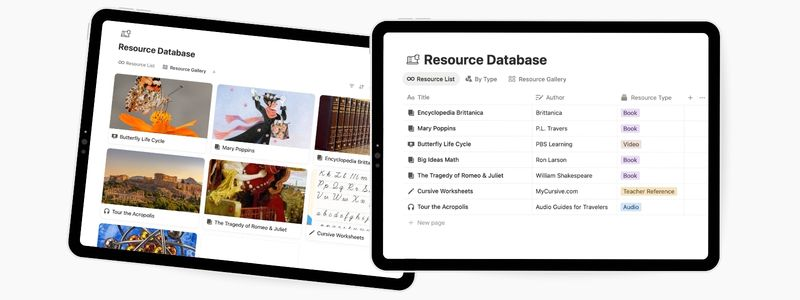
- Resource Title: Simply the name of the resource you’re listing. I go ahead and plug in the full given title of everything to make it a little easier to search if I need to later on.
- Author: If it’s got an author, list them. I put these in as a text property but you may also find use in using a select property if you tend to have a lot of repeats here.
- Type: This is what will help you organize the resources for easier viewing. I kept mine simple: Teacher Reference (books for me), Fiction, Non Fiction, Audio, Video, and Book. We haven’t had the need yet but you may also want to add Picture Book, Chapter Book or Novel, Textbook, Podcast, In Person, or Course if it suits your needs.
- URL: URL property to paste in the full link if applicable.
- Cover: The image you want to use to display the resource. Think book cover, YouTube thumbnail, brochure or flyer, etc. This is a Files & media property and looks very nice when you use this as your Gallery View for the database.
- Notes: For in person resources I’ll plug in times and important information. Book notes, or access codes also go here.
- Linking: Like I mentioned earlier, there are multiple other pages and databases you could link this database to as relation properties. This will give you the ability to see the resources that apply to you as you’re planning lessons and completing them with your student.
We listed majorly books on this list. Next used is definitely online resources like free courses, playlists, and PDFs. Having all of these items together in one home has helped streamline my process when planning out our curriculum. I am easily reminded of all of our options without having to walk all over the house rummaging.
What doesn’t belong here
To keep this from becoming a cluttered mess I try to save only yearly use items here. Seasonal ideas and inspiration are better suited in the pages for the respective Sessions or Lessons. Anything else that is more of a one-time use as well. The Resource Database isn’t the best home for them.
How this database actually gets used
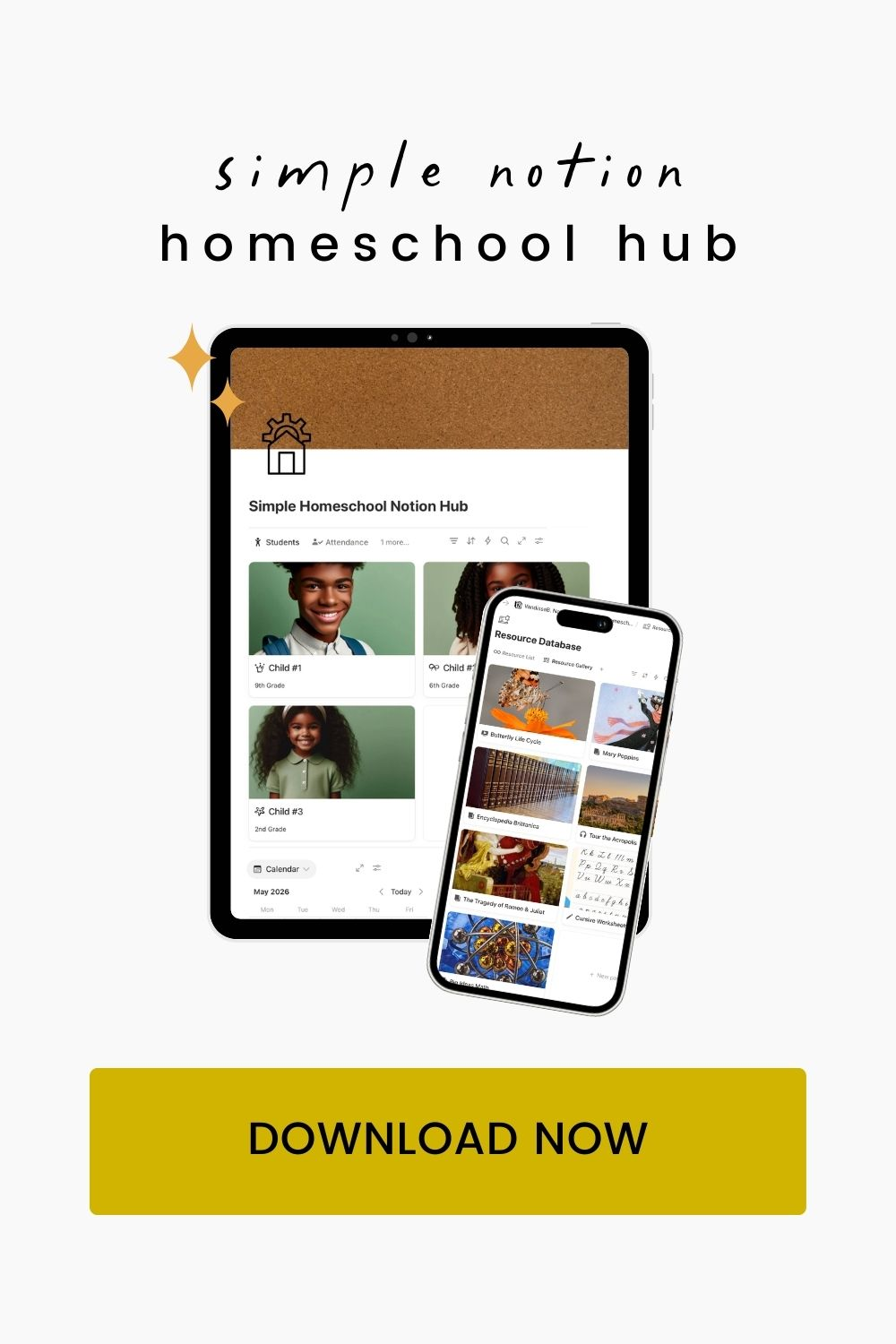
This year and next year I’ve got the Resource Database displayed in three places in my Notion Homeschool Hub.
- Lessons: Sometimes I want to look through resource options as I am planning a lesson, so I added a relation property to that page.
- Core Subjects: This one is a two-way relation. I built a page to break down each subject for our students and each subject is then linked to their corresponding resources. For example, Bug is learning how to bake. In the Baking page I have her full list of resources right there where her course objectives and progress are. The link to her online course, the recipe books we are working through, and her notes are all accessible in this way. We’ll build this together later on, be sure to check back here the post goes live in a few weeks.
- Curriculum: The curriculum outline page is a perfect home for the resource database since it holds all of the other pertinent information and is the foundation for the school year.
When planning a new term this is the first place I make sure to start. I want to utilize what we already have first, then supplement as needed by renting and purchasing elsewhere. I even look back at the past year’s list sometimes to jog my memory on what worked previously.
We have a separate list for chapter books and read alouds (but you could easily include yours on this database) that also helps me choose our next family reads. So often I’ll find a classic book at a secondhand store and forget that we grabbed it by the time we finish our current book—this has put an end to that.
Linking to Student Profiles
You may want to consider linking your child’s resources directly to their profile page. This would give you the opportunity to use a Rollup property anywhere you have linked their profile to also display their applicable resources. Additionally it might be useful to see the books, audio, video, etc. that the child is making use of that year directly.
How to Link Student Profiles Database to Resources Database
In the Resources Database, add a Relation property and select or type in Student Profiles. Enable two-way relation and hit the blue Add Relation button. Select the student for each resource and you’re done. Now the two are linked until you say otherwise.
In my full Homeschool Notion Hub, this database is already connected—but you can absolutely build this piece on its own. If the Chapter Book Tracker interested you, you can take a peek at ours here. Next up we’ll be building the Field Trips page in our Simple Notion Homeschool Hub, see you there.

Leave a Reply